How to Share Files and Folders
This guide provides a quick, step-by-step walkthrough on how to share your resources in Spark ShareSync. Whether you need to collaborate with specific team members or generate a public link for broader access, the process is simple and intuitive.
Sharing with Users or Groups
Follow these steps to grant specific individuals or teams access to your files and folders.
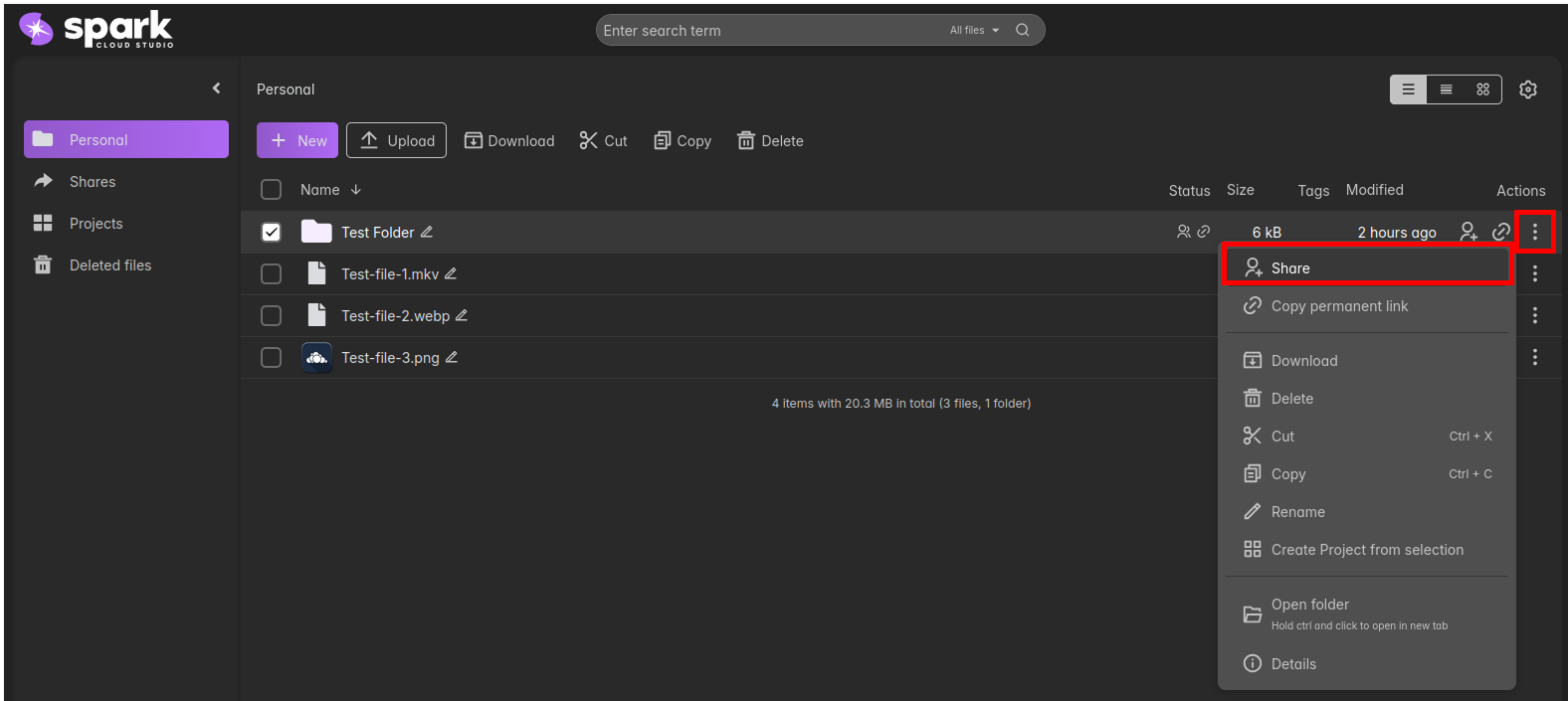
Navigate to your Personal or Project section. You can access sharing settings in two ways:
- Click the share icon directly next to the file/folder name.
- Click the kebab menu (⋮) and select "Share".
In the Sharing pane that appears on the right, use the search field to find users or groups by name or email. Click on a result to add them.
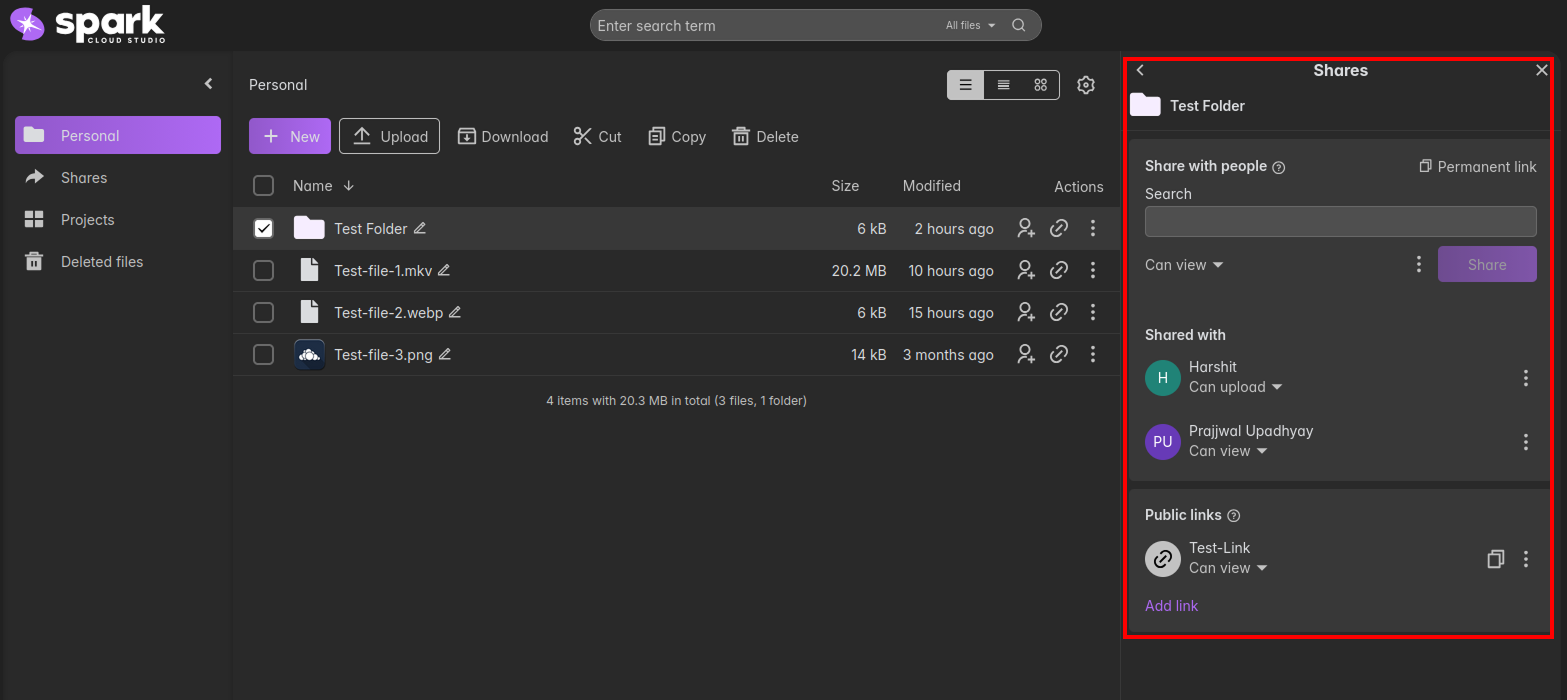
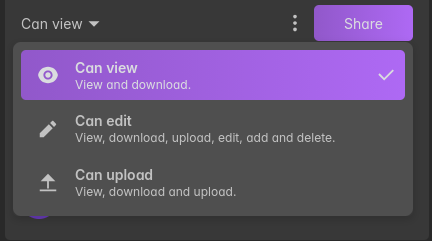
Once selected, you can assign a permission level (e.g., Can View or Can Edit) and optionally set an expiration date. The recipients will be notified automatically once added.
Want more detail on direct sharing? Go to Share with Users & Groups.
Sharing Using Public Links
Use public links to share resources with anyone, including those without a ShareSync account. These links can be highly customized for security.
Open the Sharing pane for your resource and scroll down to the Public links section at the bottom.
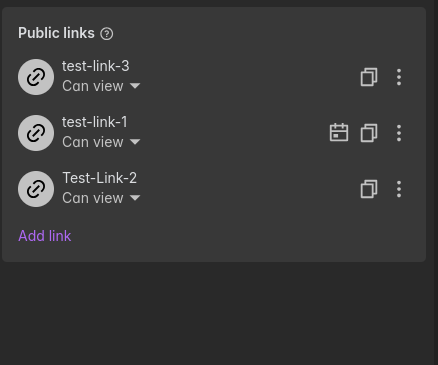
Click on "Add link". A new shareable URL will be generated instantly.
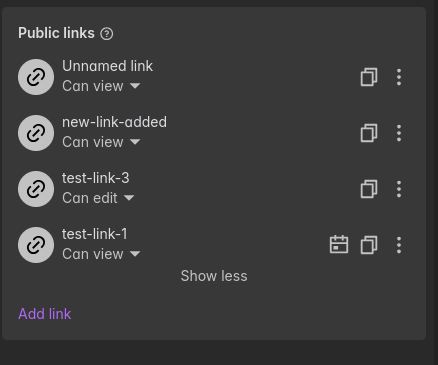
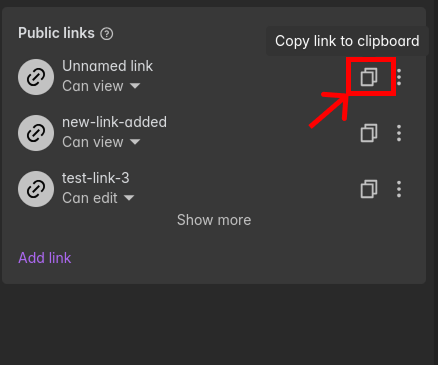
Click the kebab menu (⋮) next to your new link to set an expiration date or add password protection. Once ready, click the copy icon to share the link.
Need more info on managing links? Go to Share using Links.